Site.pro Site.pro
  • AI Website BuilderAI Website Builder
    • AI Website BuilderAI Website Builder
    • Online StoresOnline Stores
    • PricesPrices
    • CollaborationCollaboration
    • Website ImportWebsite Import
    • PluginsPlugins
    • Website BuilderWebsite Builder
    • TemplatesTemplates
    • For Design StudiosFor Design Studios
    • Useful LinksUseful Links
    • Affiliate ProgramAffiliate Program
    • We Build for YouWe Build for You
    • ExamplesExamples
    • LanguagesLanguages
  • DomainsDomains
    • Register Domain NameRegister Domain Name
    • Migrate DomainsMigrate Domains
    • For Domain InvestorsFor Domain Investors
    • Domain ZonesDomain Zones
    • DomainityDomainity
    • FAQ: DomainsFAQ: Domains
    • Popular Domain ZonesPopular Domain Zones
    • .com.com
    • .org.org
    • .net.net
    • .us.us
    • .co.co
  • EmailEmail
    • Free EmailFree Email
    • Email for BusinessEmail for Business
    • PricesPrices
    • Transfer EmailsTransfer Emails
    • Custom Domain EmailCustom Domain Email
    • FAQ: EmailFAQ: Email
    • Popular FAQsPopular FAQs
    • Email SetupEmail Setup
    • Auto ReplyAuto Reply
    • Auto ForwardingAuto Forwarding
    • Spam ProtectionSpam Protection
  • Accounting SoftwareAccounting Software
    • Accounting SoftwareAccounting Software
    • ModulesModules
    • PricesPrices
    • Integrations, APIIntegrations, API
    • Accounting Companies (389)Accounting Companies (389)
    • Software Integrators (52)Software Integrators (52)
    • Affiliate PartnersAffiliate Partners
    • Useful LinksUseful Links
    • Business TypesBusiness Types
    • Use CasesUse Cases
    • Accounting CompaniesAccounting Companies
    • Sole ProprietorSole Proprietor
    • InvoicingInvoicing
    • FarmerFarmer
    • E-commerceE-commerce
  • For ResellersFor Resellers
    • White LabelWhite Label
    • Revenue ShareRevenue Share
    • PricesPrices
    • PanelsPanels
    • How it WorksHow it Works
    • Marketing MaterialsMarketing Materials
    • Mass ImportMass Import
    • Our PartnersOur Partners
    • Reselling ExamplesReselling Examples
    • DocumentationDocumentation
    • Free WebsitesFree Websites
  • LearnLearn
    • Knowledge BaseKnowledge Base
    • BlogBlog
    • Growth HackingGrowth Hacking
    • For HostingsFor Hostings
    • For EducationFor Education
    • Website Сreation TutorialWebsite Сreation Tutorial
    • Teaching Institutions (69)Teaching Institutions (69)
    • Accounting Courses WorldwideAccounting Courses Worldwide
  • AI Website BuilderAI Website Builder
    • AI Website BuilderAI Website BuilderAI creates websites for you
    • Online StoresOnline StoresBuild online stores
    • PricesPricesAdvanced Features
    • CollaborationCollaborationCo-create websites live
    • Website ImportWebsite ImportImport Any Website
    • PluginsPluginsBuilder plugin and functions
    • Website BuilderWebsite BuilderKey Features
    • TemplatesTemplates200+ Awesome Templates
    • For Design StudiosFor Design StudiosBenefits for Design Studios
    • Useful LinksUseful Links
    • Affiliate ProgramAffiliate Program
    • We Build for YouWe Build for You
    • ExamplesExamples
    • LanguagesLanguages
  • DomainsDomains
    • Register Domain NameRegister Domain NameDomain registration, parking, transfer
    • Migrate DomainsMigrate DomainsTransfer. Connect. Renew
    • For Domain InvestorsFor Domain InvestorsDiscount on all domains
    • Domain ZonesDomain ZonesBuy New Domain Name
    • DomainityDomainityDomain usage by country
    • FAQ: DomainsFAQ: DomainsFind Answer
    • Popular Domain ZonesPopular Domain Zones
    • .com.com
    • .org.org
    • .net.net
    • .us.us
    • .co.co
  • EmailEmail
    • Free EmailFree EmailCreate email
    • Email for BusinessEmail for BusinessAdvanced features & protection
    • PricesPricesCheap email hosting
    • Transfer EmailsTransfer EmailsMigrate your mailboxes
    • Custom Domain EmailCustom Domain EmailEmail address with your domain
    • FAQ: EmailFAQ: EmailFind Answer
    • Popular FAQsPopular FAQs
    • Email SetupEmail Setup
    • Auto ReplyAuto Reply
    • Auto ForwardingAuto Forwarding
    • Spam ProtectionSpam Protection
  • Accounting SoftwareAccounting Software
    • Accounting SoftwareAccounting SoftwareCloud based ERP
    • ModulesModulesMain accounting software modules
    • PricesPrices30 days free trial
    • Integrations, APIIntegrations, APIIntegration with external systems
    • Accounting Companies (389)Accounting Companies (389)Choose your partner for accounting
    • Software Integrators (52)Software Integrators (52)Pick your integrations partner
    • Affiliate PartnersAffiliate PartnersPartners and Affiliate program
    • Useful LinksUseful LinksCalculators and Calendars
    • Business TypesBusiness TypesUse Cases
    • Use CasesUse Cases
    • Accounting CompaniesAccounting Companies
    • Sole ProprietorSole Proprietor
    • InvoicingInvoicing
    • FarmerFarmer
    • E-commerceE-commerce
  • For ResellersWhite LabelFor ResellersWhite Label
    • White LabelWhite LabelCustomise Builder
    • Revenue ShareRevenue ShareEarn 50% from each upgrade
    • PricesPricesRevenue Share. White Label
    • PanelsPanelsOne product for all platforms
    • How it WorksHow it WorksCloud or On-Premises
    • Marketing MaterialsMarketing MaterialsVideo. Mockups. Blocks
    • Mass ImportMass Import
    • Our PartnersOur Partners
    • Reselling ExamplesReselling Examples
    • DocumentationDocumentation
    • Free WebsitesFree Websites
  • LearnLearn
    • Knowledge BaseKnowledge BaseFAQ, Tutorial, Video
    • BlogBlogSite.pro Blog
    • Growth HackingGrowth HackingBoost your sales
    • For HostingsFor HostingsTips on marketing
    • For EducationFor EducationTraining. Tutorials
    • Website Сreation TutorialWebsite Сreation Tutorial
    • Teaching Institutions (69)Teaching Institutions (69)
    • Accounting Courses WorldwideAccounting Courses Worldwide
  • RegisterRegister
    Site.pro

    Create Your Account

    Get started — free and easy!

    Register

    By registering, you accept our Terms of Service
  • Log inLog in
    Site.pro

    Welcome back!

    Access your work space

    Log in

    New user? Create account
    Forgot password?
  • $
    $
  • EnglishEnglish
  • AI Website Builder (360)
    • Managing Website (24)
    • Website Builder (312)
      • Website creation (71)
      • Text (14)
      • Pictures (8)
      • Additional (8)
      • Media (15)
      • Social (13)
      • SEO (23)
      • Import (8)
      • Commerce (87)
      • Maps (12)
      • Advanced (19)
      • Forms (7)
      • Errors (23)
      • Custom plugins (4)
    • Web Design Studio (5)
    • Affiliate Program (9)
    • Education (10)
  • Account & Billing (38)
    • Account / Profile (8)
    • Payments (9)
  • Domains (46)
    • Purchasing (20)
    • Domain Investors (1)
    • Connecting (25)
  • Accounting Software (767)
    • Dashboard (company) (19)
    • Clients (11)
    • Warehouse (133)
      • Sales (57)
      • Simplified invoicing (6)
      • Client prices (1)
      • Automatic invoicing (1)
      • Purchases (33)
      • Sales return (5)
      • Item stock (1)
      • Item movement (1)
      • Consignment balance (2)
      • Inventory (1)
      • Revalue (1)
      • Internal movement confirmation (1)
      • E-commerce (17)
      • Cash register sales (6)
    • General ledger (32)
      • General register (16)
      • Doc. settlement (2)
      • Period closure (1)
      • Currency exchange rate range (2)
      • Currency exchange rate adjustment (1)
      • Financial accountability articles (2)
      • Cost centers (2)
      • Chart of accounts (4)
    • Bank (30)
      • Bank (11)
      • Bank link with cor. account (1)
      • Import statements (15)
      • SEPA payments (3)
    • Cashier (5)
      • Cashier (3)
      • Money receiving receipts (1)
      • Reference book (1)
    • Reports (37)
      • Inventory report (8)
      • General ledger reports (10)
      • Ind. activity report (1)
      • Sales-purchases (5)
      • Debt management (5)
      • Balances / PLN (2)
      • Other reports (3)
    • Personnel (28)
      • Employees (22)
      • Requests (1)
      • CV (1)
      • Reference book (4)
        • Job positions (2)
        • Request types (2)
    • Reference book (23)
      • Item cards (6)
      • Warehouse (9)
        • Warehouses (4)
        • Operation types (5)
      • Intrastat (2)
      • Locations (1)
      • Banks (1)
      • Currencies (3)
      • Currency exchange rates (1)
    • Production (5)
      • Technological cards (1)
      • Production from technological cards (2)
      • Bundle / debundle (2)
    • Assets (17)
      • Long-term assets (15)
      • Low value assets (1)
      • General report (1)
    • Documents (41)
      • Orders (20)
        • Orders (13)
        • Order attributes (5)
        • Daily allowance (2)
      • Insurance (2)
      • Agreements (1)
      • Emails registry (2)
      • Outgoing mail register (1)
      • Incoming / Outgoing document register (1)
      • Annual leave (10)
        • Accumulated holiday days (2)
        • Vacation balances (7)
      • Incapacity certificate (2)
      • Internal documents (2)
    • Salary (55)
      • Payroll (28)
      • Timesheets (7)
      • Work schedule (1)
      • Wage prints (15)
      • Reference book (3)
        • Wage codes (Registers) (2)
    • Declaration (35)
      • Generate declarations (19)
      • Declaration signs (1)
      • i.VAZ (3)
      • i.SAF (5)
      • SAF-T (1)
      • GPAIS (6)
    • Settings (157)
      • Settings (32)
        • System and logos (6)
        • Sales (6)
        • Accounting (7)
        • Declarations (1)
        • Data exchange (2)
        • Users / employees (1)
        • Invoices recognition (2)
        • Additional employee attributes (1)
        • Additional item attributes (1)
        • Additional sale attributes (1)
        • Approval of documents (1)
        • Self-employed (1)
        • Sending invoices by email (2)
      • Integrations (108)
        • API (17)
          • API for e-commerce (8)
          • API simplified (5)
        • Artificial Intelligence Assistant (3)
        • Plugins for E-shops (7)
          • WooCommerce (4)
          • PrestaShop (1)
          • Opencart (1)
          • Adobe Commerce (Magento) (1)
        • Trading Platforms (23)
          • Allegro (1)
          • eBay (2)
          • Amazon (3)
          • Shopify (5)
          • Etsy (5)
          • Site.pro (3)
          • Varle.lt (1)
          • Verskis (1)
          • Pigu.lt (1)
        • Cash registers (16)
          • Čekis cash register (1)
          • Paysera POS (1)
          • Raso cash registers (11)
          • Restera (1)
          • nSoft (1)
        • Automatic import of bank statements (6)
        • Creditonline.eu (1)
        • MIP (6)
        • Analytics (2)
      • Data import (17)
    • Account (138)
      • Dashboard (26)
      • Companies and users (31)
      • File upload (8)
      • Employee account (5)
      • My data (22)
      • Affiliate program (4)
      • Invites (3)
      • Reminders (1)
      • Robots (5)
      • Support (7)
        • How to book the program training? (1)
      • Statistics (4)
      • Other information (22)
  • Mailboxes (30)
  • For Resellers (140)
    • Brand (Cloud, On-Premises) (34)
      • Cloud (6)
      • On-Premises (28)
    • License (46)
    • Installation (26)
      • Website Builder (21)
      • Website Builder Plugin (5)
    • Hosting/Billing Panels (34)
      • WHMCS (6)
      • cPanel (6)
      • DirectAdmin (9)
      • ISPmanager (3)
      • Plesk (6)
      • Webuzo (2)
      • Control Web Panel (2)

Table of Contents:

Category
Search
Filter
  • All (1436)
  • AI Website Builder (376)
  • Domains (94)
  • Mailboxes (74)
  • Accounting Software (863)
  • For Resellers (472)
  • Table of Contents:

    How to connect Site.pro with Amazon?
    Order data is automatically synchronized to Site.pro, simplifying your work; you only need to activate the integration by following the steps provided in the instructions. Create operationsLink newly created operations to a seriesCreate item cardsActivate connection to Amazon:To enable the Amazon integration in Site.pro, additional authorization is required. Steps:Click the link (you must be logged into the Site.pro system for the link to work).Select the region or country where you are selling:Click the green "Authorize" button.On the page that opens, you must confirm the Site.pro program by clicking the “Confirm” button:After successfully authorizing the Site.pro program, you will be redirected back to the Site.pro website.Use the received "Seller ID" and "Your token" in the Amazon integration settings, which you can access by clicking the "Go to integration settings" button or via Settings → Integrations → Amazon.Set up the online store parameters for Amazon:Settings → Integrations → AmazonClick the "" "Add service" button. Fill in the required fields in the window that opens.Name – assigned automatically, but you can change it to create one that is most convenient for you.AWS region – select 1 of 3 sales regions with which your account is linked:North America (Canadian, US, Mexican, and Brazilian marketplaces);Europe (Spanish, UK, French, Belgian, Dutch, German, Italian, Swedish, South African, Polish, Saudi Arabian, Egyptian, Turkish, UAE, and Indian marketplaces);Far East (Singaporean, Australian, and Japanese marketplaces).Warehouse:For FBM, select the country (region) where the seller was initially registered. For FBM, it is sufficient to create one integration per "Seller ID". If you have multiple different Amazon "Seller IDs", you need to create one FBM integration for each.For FBA, you need to select the countries (regions) from whose Amazon warehouses you are selling. You need to create a separate integration for each FBA warehouse and select the country so that the VAT rate is applied according to the warehouse location.In the “Seller ID” field, enter the "Seller ID" received from Amazon.In the “Update access token” field, enter the "Your token" received from Amazon.In the “Synchronize orders from” and “Accounting calculated from” fields, set the date from which you want to synchronize data. Make sure to fill in both fields.In the “Next synchronization” field, you can see the date of the next scheduled synchronization.Accounting settings: Fill in the fields marked with an asterisk, and assign the previously created operations and cards.The "Default integration" field is marked if more than one Amazon integration is used and you want it to be treated as the main one. This flag is necessary in cases where the "fulfillment center", which indicates which integration the imported order belongs to, is not received with the order.The "Sales operation for EU private individuals" field is filled in cases where the company is registered in the OSS system and you want to separate sales to private individuals from the EU.The "US Sales TAX" field is filled in cases where you trade in the US, as "Sales Tax" is calculated.The "Apply the highest VAT rate from order data (for discounts, shipping, and other services)" field is used when the customer's country VAT rate is applied to items, but 0% is applied to shipping and discounts. The function automatically applies the highest VAT rate to all invoice lines so you do not have to correct them manually.At the "VAT rates used" field, after clicking the " Import VAT rates" button, fill in the fields. The VAT rates you set in the “VAT rate import” table will be assigned to each country. Required VAT rate settings:VAT payer (EU);Non-VAT payer (EU);Other (outside EU).Click "" Import. How to copy VAT rates from another completed integration?Note. If you have been granted another VAT identification number and you have the right to sell with a different VAT rate, add the settings for that country separately, i.e., describe other VAT rates used. Note. If you have already activated another integration where you have set VAT rates, you can copy them from the previous integration. Follow the instructions on how to do this.Link Site.pro and Amazon items.Each item is linked by the SKU code, which must match the information entered in the Site.pro Item card "Code" field.In the Amazon online store, the Amazon item SKU can be seen by logging into Amazon Inventory → Manage Inventory in the SKU field:In the Site.pro system: Registers → Item cards → Items. Each item in the online store is linked by the SKU code, which must match the information entered in the Site.pro item card "Code" field. The code can consist of up to 60 characters.Note. If item cards are linked in both Site.pro and Amazon systems, after the second record is created, i.e., the warehouse write-off document, this item will be written off.[p]Describe data exchange:Settings → Settings → Data exchange → Payment settingsIn the "Payment settings" table, you enter the settings required for automatic bank statement imports from online stores. Enter the settlement currencies for each online store: EUR, USD, GBP, etc.Instructions, how to link a bank account with a chart of accounts account?Note: To ensure the order is closed, we recommend using a suspense account for bank payment operations. Only when you receive the income from Amazon should you register this amount as an incoming payment to the bank. Since Amazon has a virtual wallet, you do not receive a bank payment after processing each individual order.Synchronize data:After completing all the provided settings, you can import orders. Open the enabled service under Settings → Integrations → Amazon and click “Get data”.Orders are synchronized automatically once per day; to receive orders faster, you can click the “Get data” button (we recommend not clicking this button too often, as the Amazon server may temporarily block access).Synchronized orders from the e-shop are stored in the Site.pro program in the Warehouse → E-commerce module. If an entry is gray, it means the order has been processed, i.e., the item has been deducted from the warehouse. If the entry is white, perform the deduction manually.Registered documents in the Site.pro system can be found by clicking the “Accounting information” tab.The “Sales doc. series / number” field displays the sales document registered in accounting.The “Deduction act doc. series / number” field displays the deduction document registered in accounting.These generated documents are stored in the Warehouse → Sales module with corresponding accounts. Clicking the “View” button opens the document.In the “Warehouse stock” section, you can see warehouse balances. Note. If you want to speed up synchronization, you can synchronize data manually by clicking the “Get data” button located at the top. However, we recommend not performing this action too often, as the Amazon server may temporarily block access.
    FAQ
    ›
    Accounting Software
    ›
    Settings
    ›
    Integrations
    ›
    Trading Platforms
    ›
    Amazon
    Accounting Software

    How to connect Site.pro with Amazon?

    Order data is automatically synchronized to Site.pro, simplifying your work; you only need to activate the integration by following the steps provided in the instructions.

    1. Create operations
    2. Link newly created operations to a series
    3. Create item cards
    4. Activate connection to Amazon:

      To enable the Amazon integration in Site.pro, additional authorization is required. Steps:
      • Click the link (you must be logged into the Site.pro system for the link to work).
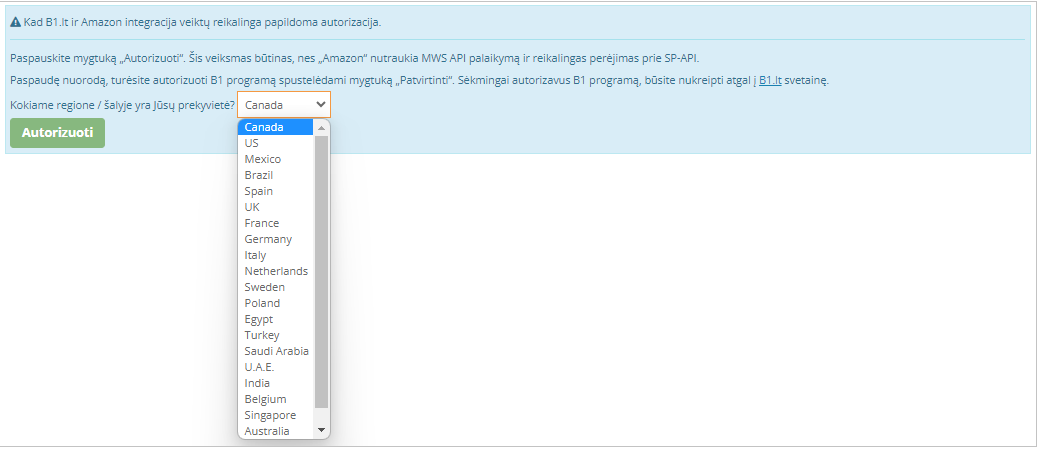
      • Select the region or country where you are selling:

        Region or country selection window for Amazon integration

      • Click the green "Authorize" button.
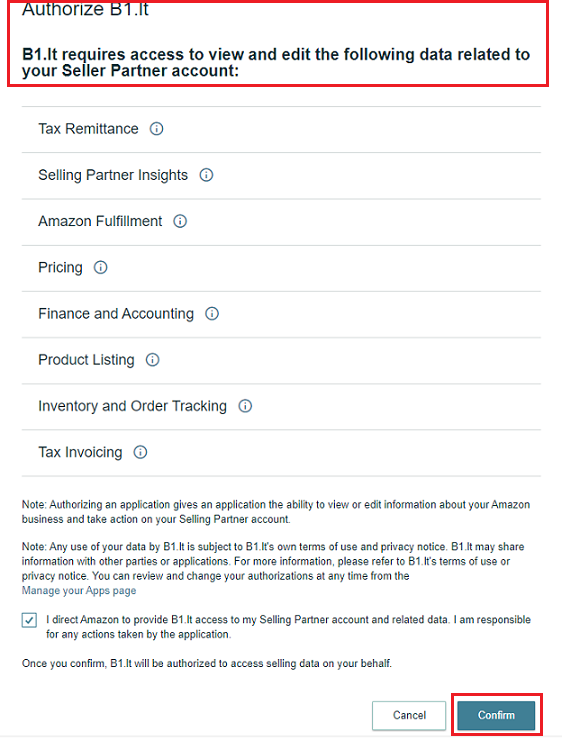
      • On the page that opens, you must confirm the Site.pro program by clicking the “Confirm” button:

        Site.pro program confirmation button in Amazon integration

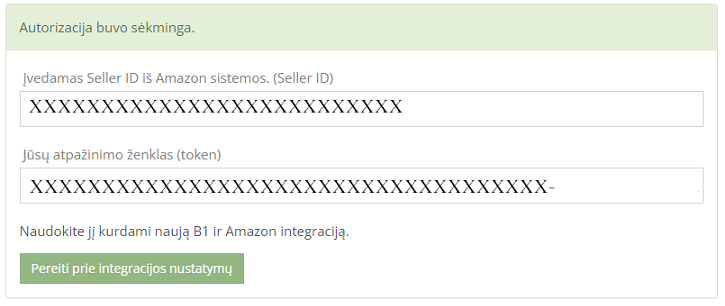
      • After successfully authorizing the Site.pro program, you will be redirected back to the Site.pro website.

        Returning to the Site.pro website after Amazon authorization

      • Use the received "Seller ID" and "Your token" in the Amazon integration settings, which you can access by clicking the "Go to integration settings" button or via Settings → Integrations → Amazon.
    5. Set up the online store parameters for Amazon:
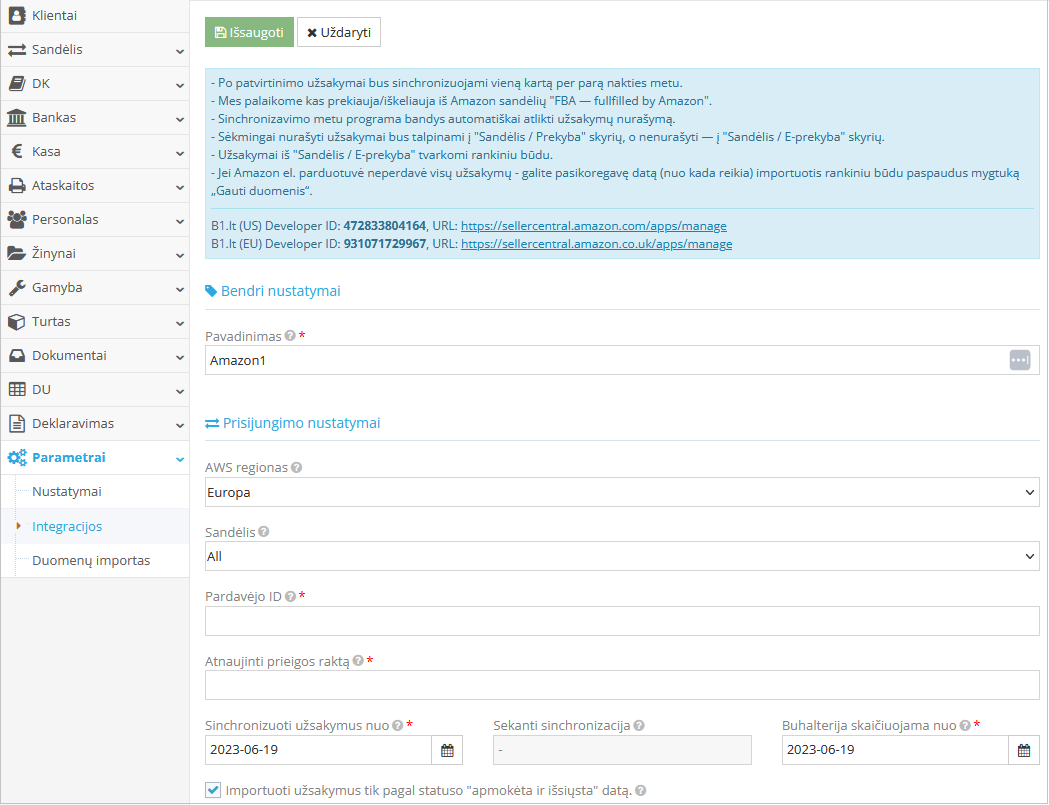
      Settings → Integrations → Amazon

      Click the "" "Add service" button. Fill in the required fields in the window that opens.
      • Name – assigned automatically, but you can change it to create one that is most convenient for you.
      • AWS region – select 1 of 3 sales regions with which your account is linked:
        • North America (Canadian, US, Mexican, and Brazilian marketplaces);
        • Europe (Spanish, UK, French, Belgian, Dutch, German, Italian, Swedish, South African, Polish, Saudi Arabian, Egyptian, Turkish, UAE, and Indian marketplaces);
        • Far East (Singaporean, Australian, and Japanese marketplaces).
      • Warehouse:
        • For FBM, select the country (region) where the seller was initially registered. For FBM, it is sufficient to create one integration per "Seller ID". If you have multiple different Amazon "Seller IDs", you need to create one FBM integration for each.
        • For FBA, you need to select the countries (regions) from whose Amazon warehouses you are selling. You need to create a separate integration for each FBA warehouse and select the country so that the VAT rate is applied according to the warehouse location.
        • In the “Seller ID” field, enter the "Seller ID" received from Amazon.
        • In the “Update access token” field, enter the "Your token" received from Amazon.
        • In the “Synchronize orders from” and “Accounting calculated from” fields, set the date from which you want to synchronize data. Make sure to fill in both fields.
        • In the “Next synchronization” field, you can see the date of the next scheduled synchronization.

          Amazon region selection window

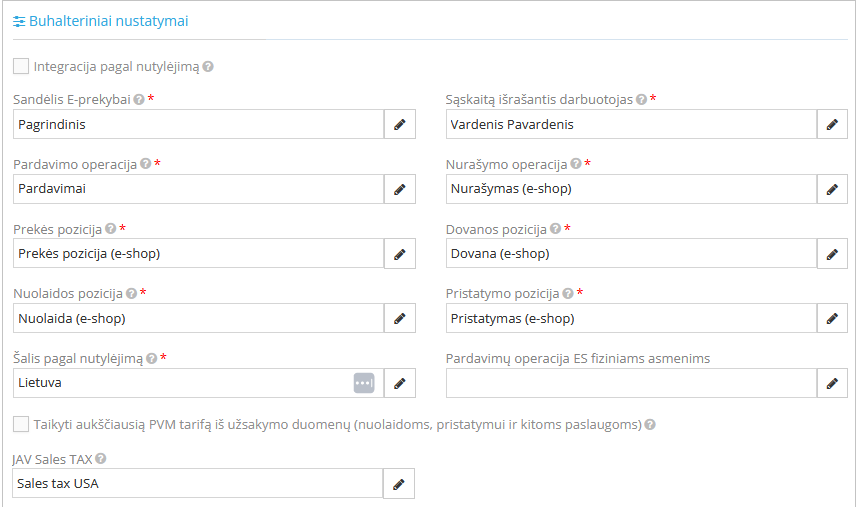
      • Accounting settings: Fill in the fields marked with an asterisk, and assign the previously created operations and cards.

        Amazon accounting settings window

        • The "Default integration" field is marked if more than one Amazon integration is used and you want it to be treated as the main one. This flag is necessary in cases where the "fulfillment center", which indicates which integration the imported order belongs to, is not received with the order.
        • The "Sales operation for EU private individuals" field is filled in cases where the company is registered in the OSS system and you want to separate sales to private individuals from the EU.
        • The "US Sales TAX" field is filled in cases where you trade in the US, as "Sales Tax" is calculated.
        • The "Apply the highest VAT rate from order data (for discounts, shipping, and other services)" field is used when the customer's country VAT rate is applied to items, but 0% is applied to shipping and discounts. The function automatically applies the highest VAT rate to all invoice lines so you do not have to correct them manually.
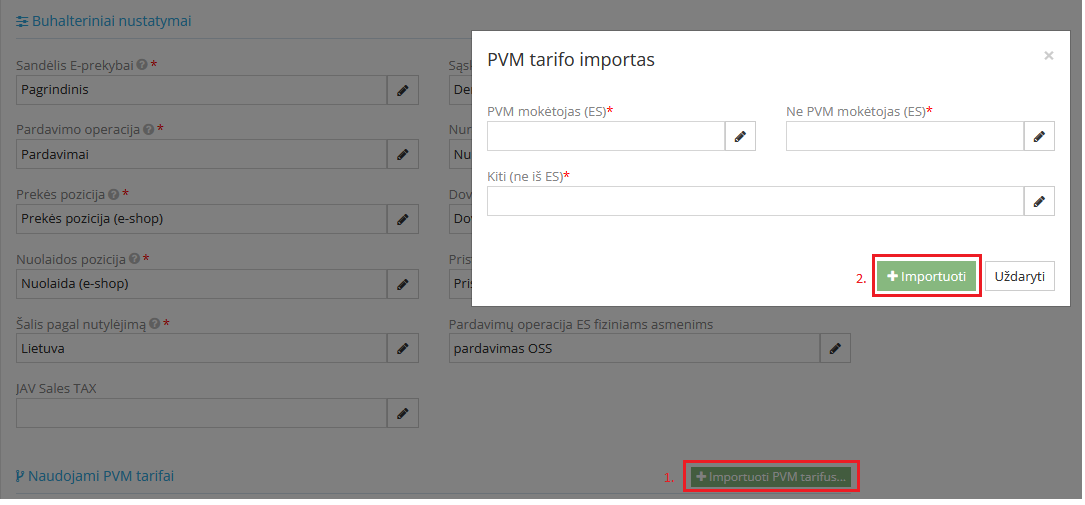
      • At the "VAT rates used" field, after clicking the " Import VAT rates" button, fill in the fields. The VAT rates you set in the “VAT rate import” table will be assigned to each country. Required VAT rate settings:
        • VAT payer (EU);
        • Non-VAT payer (EU);
        • Other (outside EU).
      • Click "" Import. How to copy VAT rates from another completed integration?

        Note. If you have been granted another VAT identification number and you have the right to sell with a different VAT rate, add the settings for that country separately, i.e., describe other VAT rates used.


        VAT rate import window in Amazon integration

        Note. If you have already activated another integration where you have set VAT rates, you can copy them from the previous integration. Follow the instructions on how to do this.

    6. Link Site.pro and Amazon items.

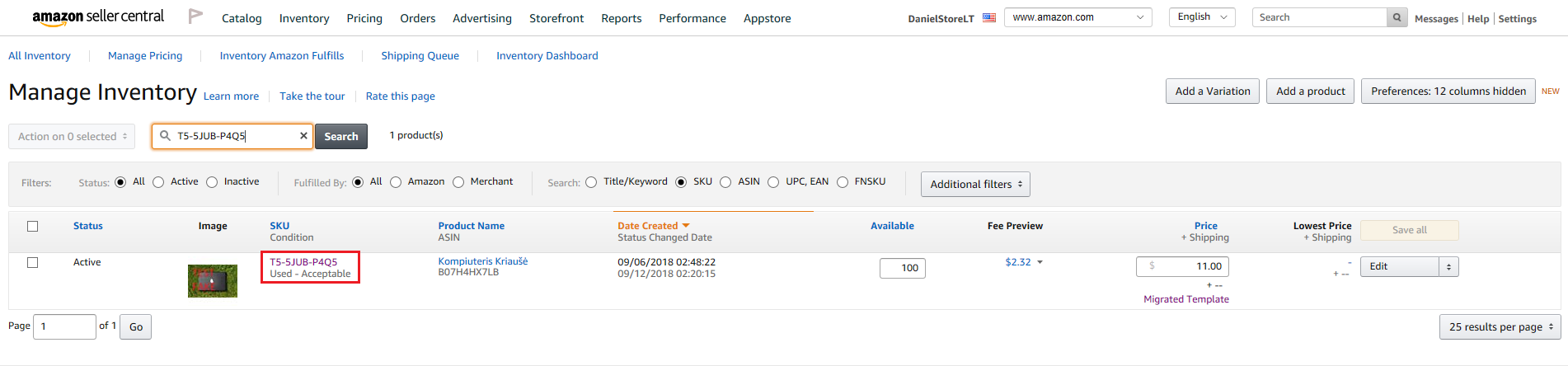
      Each item is linked by the SKU code, which must match the information entered in the Site.pro Item card "Code" field.
      • In the Amazon online store, the Amazon item SKU can be seen by logging into Amazon Inventory → Manage Inventory in the SKU field:

        View of the Amazon SKU field in the Amazon store

      • In the Site.pro system: Registers → Item cards → Items. Each item in the online store is linked by the SKU code, which must match the information entered in the Site.pro item card "Code" field. The code can consist of up to 60 characters.

        Item code field in the Site.pro system

        Note. If item cards are linked in both Site.pro and Amazon systems, after the second record is created, i.e., the warehouse write-off document, this item will be written off.

    7. [p]Describe data exchange:
    8. Settings → Settings → Data exchange → Payment settings
    9. In the "Payment settings" table, you enter the settings required for automatic bank statement imports from online stores. Enter the settlement currencies for each online store: EUR, USD, GBP, etc.
    10. Instructions, how to link a bank account with a chart of accounts account?

      Note: To ensure the order is closed, we recommend using a suspense account for bank payment operations. Only when you receive the income from Amazon should you register this amount as an incoming payment to the bank. Since Amazon has a virtual wallet, you do not receive a bank payment after processing each individual order.

    11. Synchronize data:
      After completing all the provided settings, you can import orders. Open the enabled service under Settings → Integrations → Amazon and click “Get data”.

      Clicking the Get data button in Amazon integration

      1. Orders are synchronized automatically once per day; to receive orders faster, you can click the “Get data” button (we recommend not clicking this button too often, as the Amazon server may temporarily block access).
      2. Synchronized orders from the e-shop are stored in the Site.pro program in the Warehouse → E-commerce module. If an entry is gray, it means the order has been processed, i.e., the item has been deducted from the warehouse. If the entry is white, perform the deduction manually.

        Viewing synchronized orders in the e-commerce module

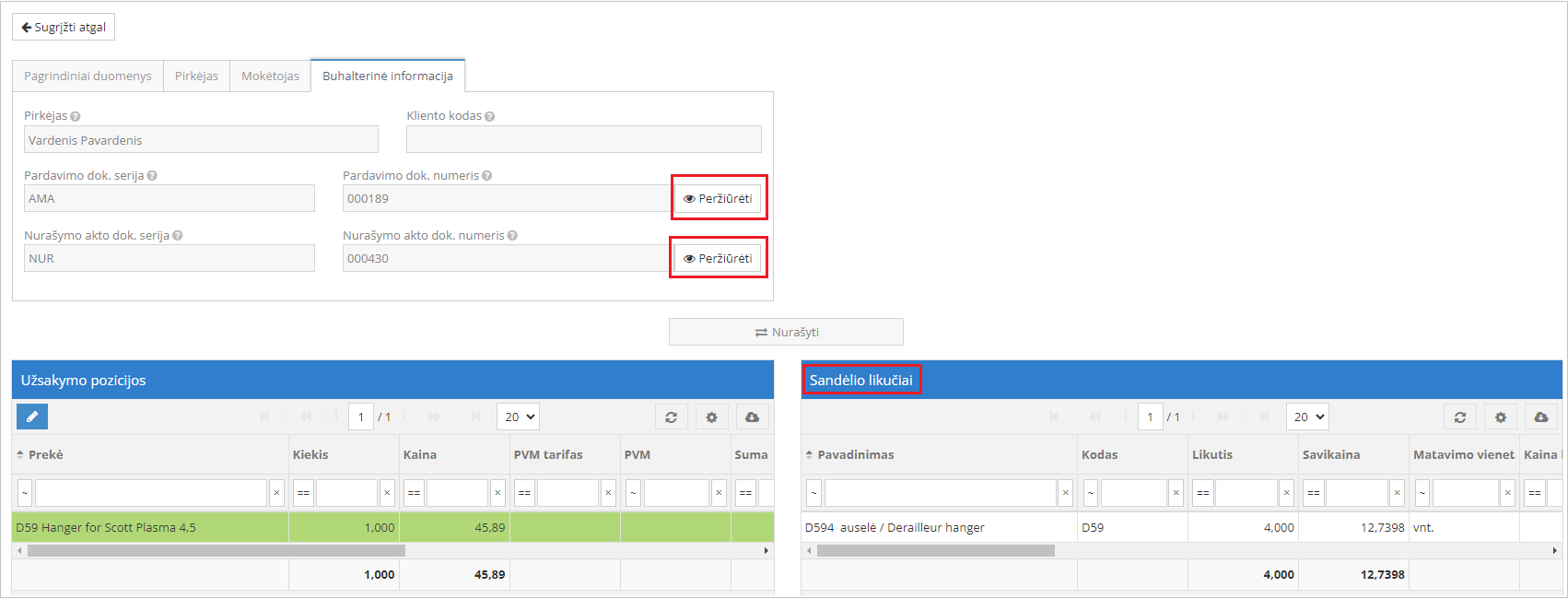
      3. Registered documents in the Site.pro system can be found by clicking the “Accounting information” tab.
      4. The “Sales doc. series / number” field displays the sales document registered in accounting.
      5. The “Deduction act doc. series / number” field displays the deduction document registered in accounting.

        Viewing order documents in the accounting system

      6. These generated documents are stored in the Warehouse → Sales module with corresponding accounts. Clicking the “View” button opens the document.
      7. In the “Warehouse stock” section, you can see warehouse balances.

    Note. If you want to speed up synchronization, you can synchronize data manually by clicking the “Get data” button located at the top. However, we recommend not performing this action too often, as the Amazon server may temporarily block access.


    People also found this article using these queries:

    • instructions for connection with amazon
    • Instructions for connecting with Amazon
    • How to connect Site.pro with Amazon?
    • About Amazon import
    • Amazon payment import
    • About Amazon integration
    • About writing off Amazon orders from the warehouse entered in Site.pro
    • Connecting to Amazon
    • Writing off products from Amazon
    © Site.pro 2011. Website Builder. United States.
    Contact SalesContact SalesTerms of ServiceTerms of ServicePrivacy PolicyPrivacy PolicyCookie SettingsCookie Settings